Documents can be added anytime on an Inspection.
Step 1:
Click on the Inspections navigation bar item, within the Activity section.
Search and click on an Inspection that you need to add documents to.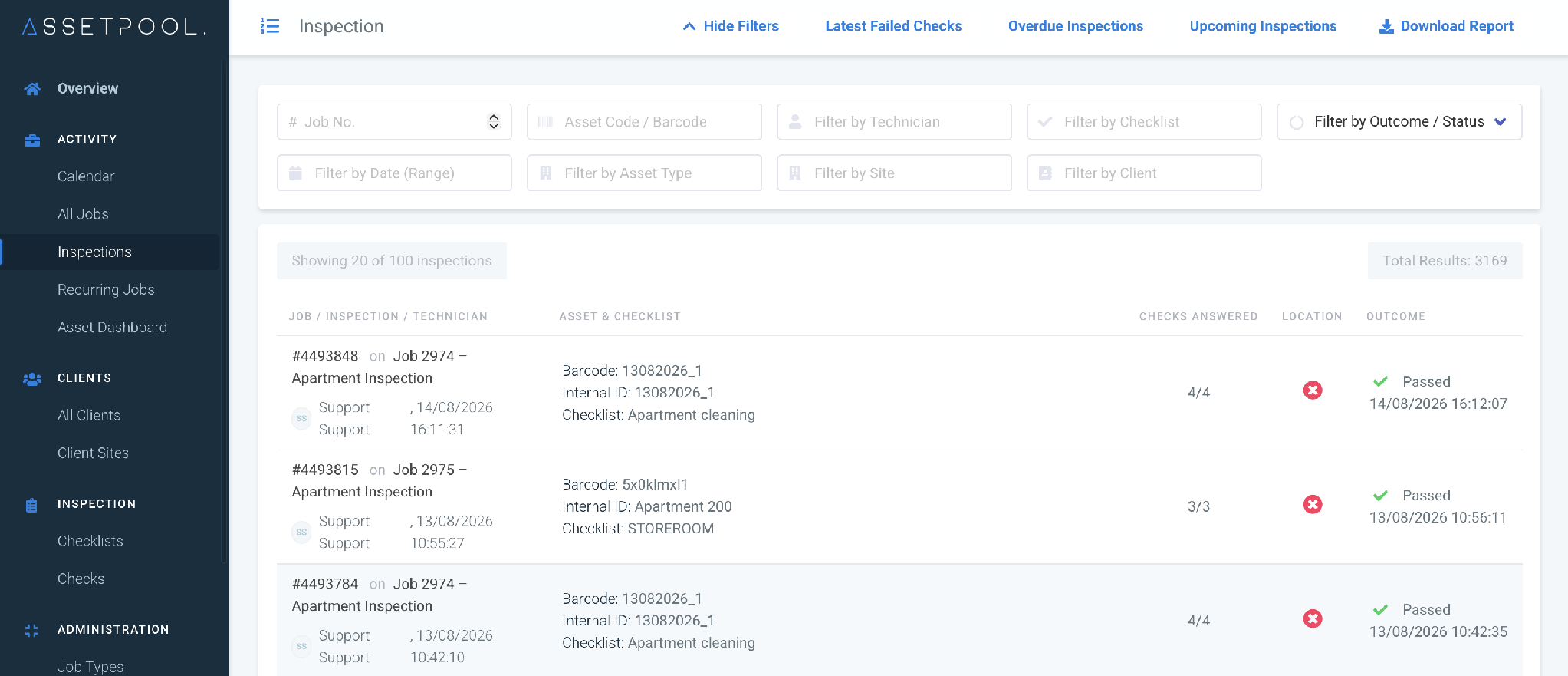
Step 2:
You will be taken to the Inspection report screen on Asset Manager.
Scroll down to the Documentation section and click on the Upload Document button as shown below.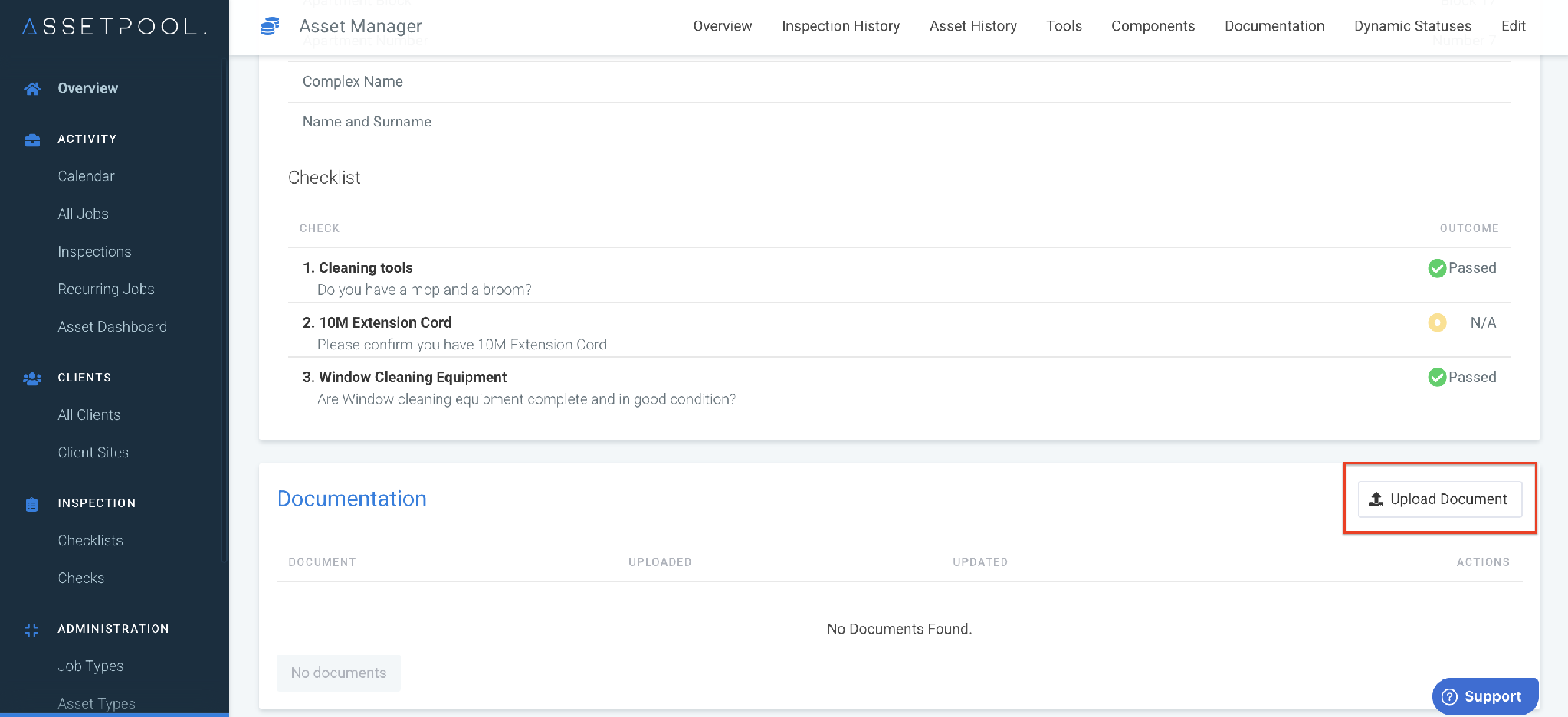
Step 3:
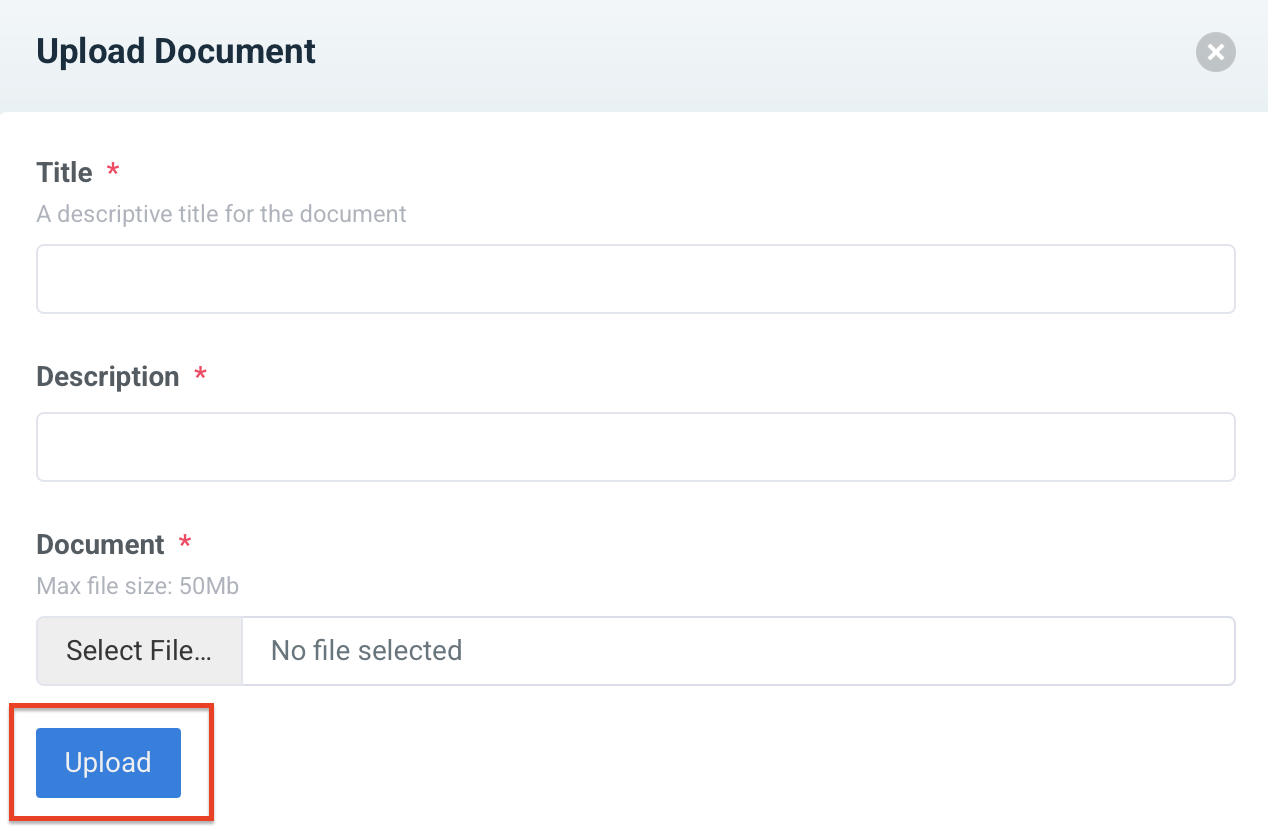
On the Upload Document pop - up window, fill in all other required details and click on the Upload button.
Step 4:
The documents can be viewed under Documentation section on the Asset Manager.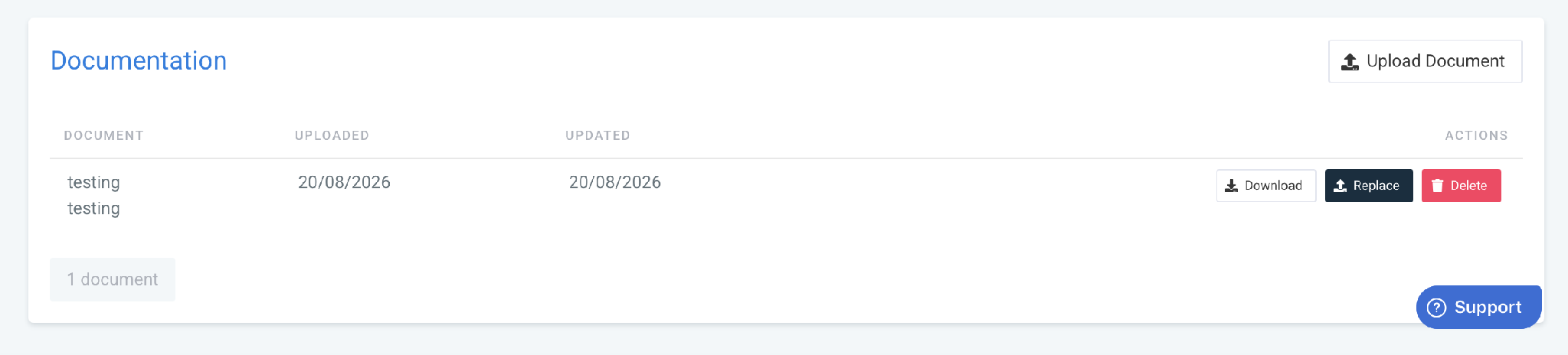
Was this article helpful?
That’s Great!
Thank you for your feedback
Sorry! We couldn't be helpful
Thank you for your feedback
Feedback sent
We appreciate your effort and will try to fix the article