Require Documents for Specific Assets.
This feature allows you to require specific documents for selected assets, ensuring that all necessary documentation is uploaded and kept up to date.
You can specify which documents are required for each asset type and, where applicable, set expiry dates to help you monitor when documents need to be renewed.
Step 1:
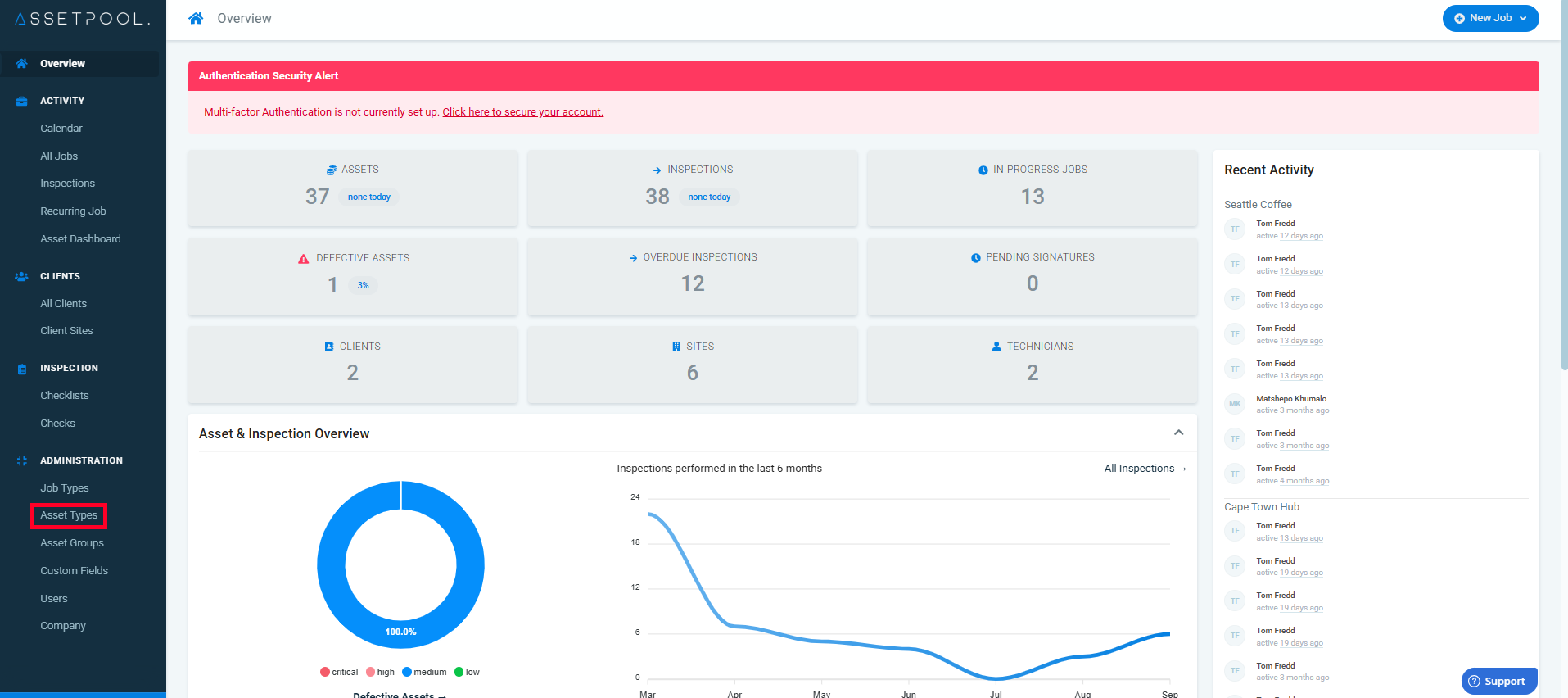
Navigate to the main menu on the left, and click on Asset Types.
Step 2:
Under the Asset Types screen, search for and select the asset type to which you want to add documentation.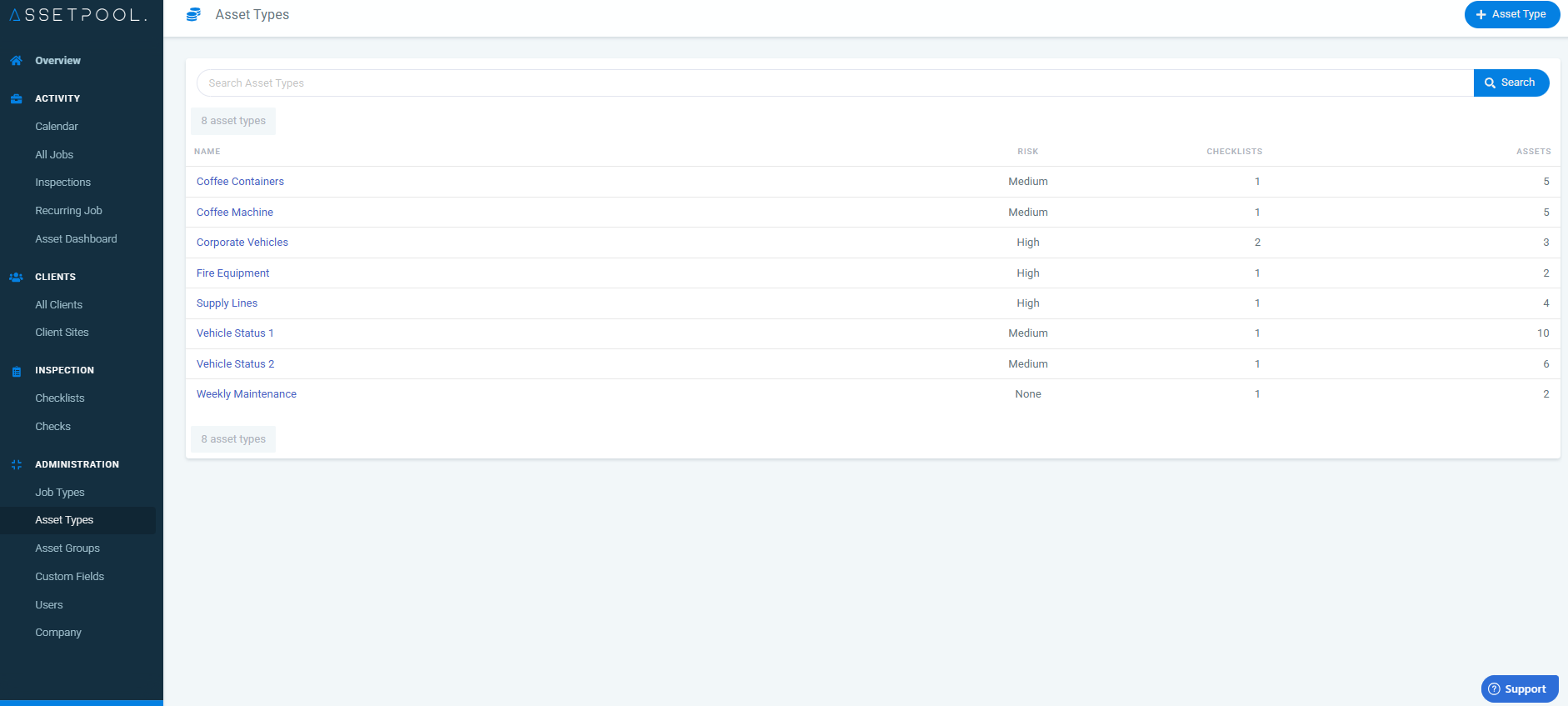
Step 3:
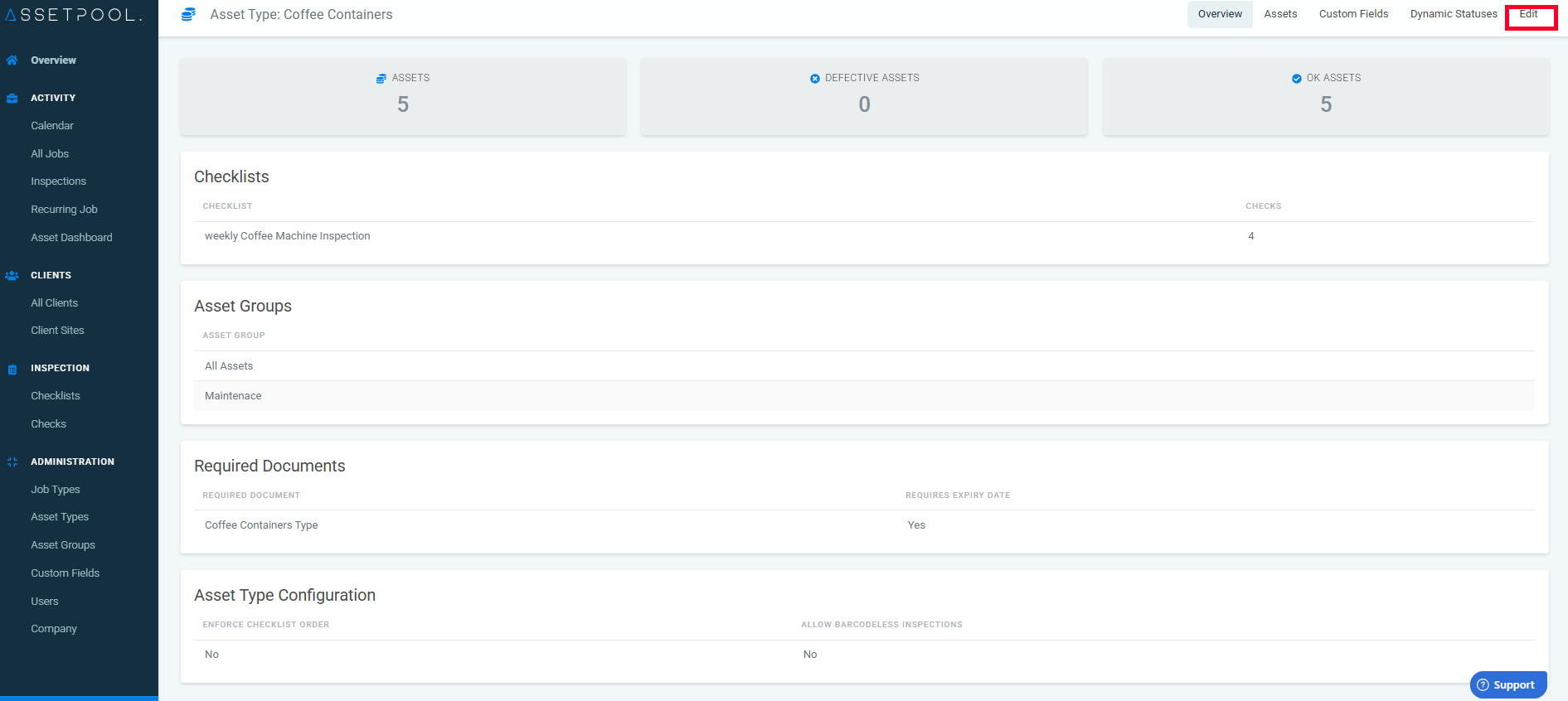
Click on the Edit button.
Step 4:
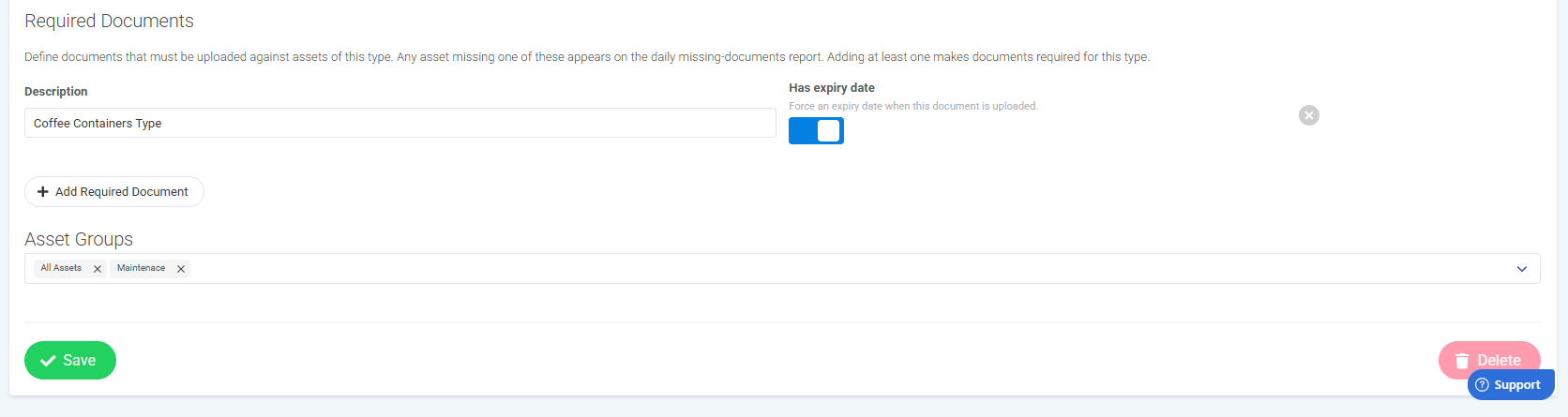
Click the Add Required Document button. Once clicked, you will be required to provide a description of the document.
An optional expiry date can also be enforced when uploading a document by using the provided toggle switch.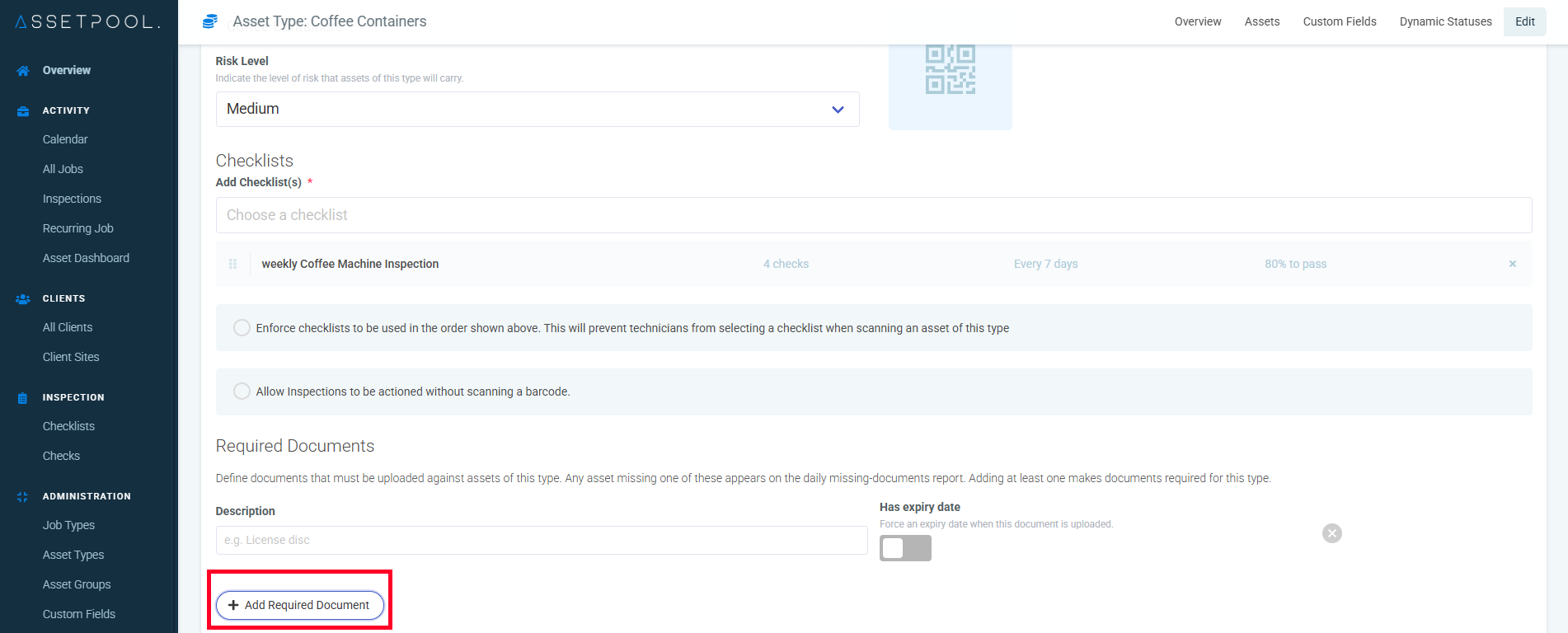
Step 5:
Once you have filled in the required information, click on the save button.
Step 6:
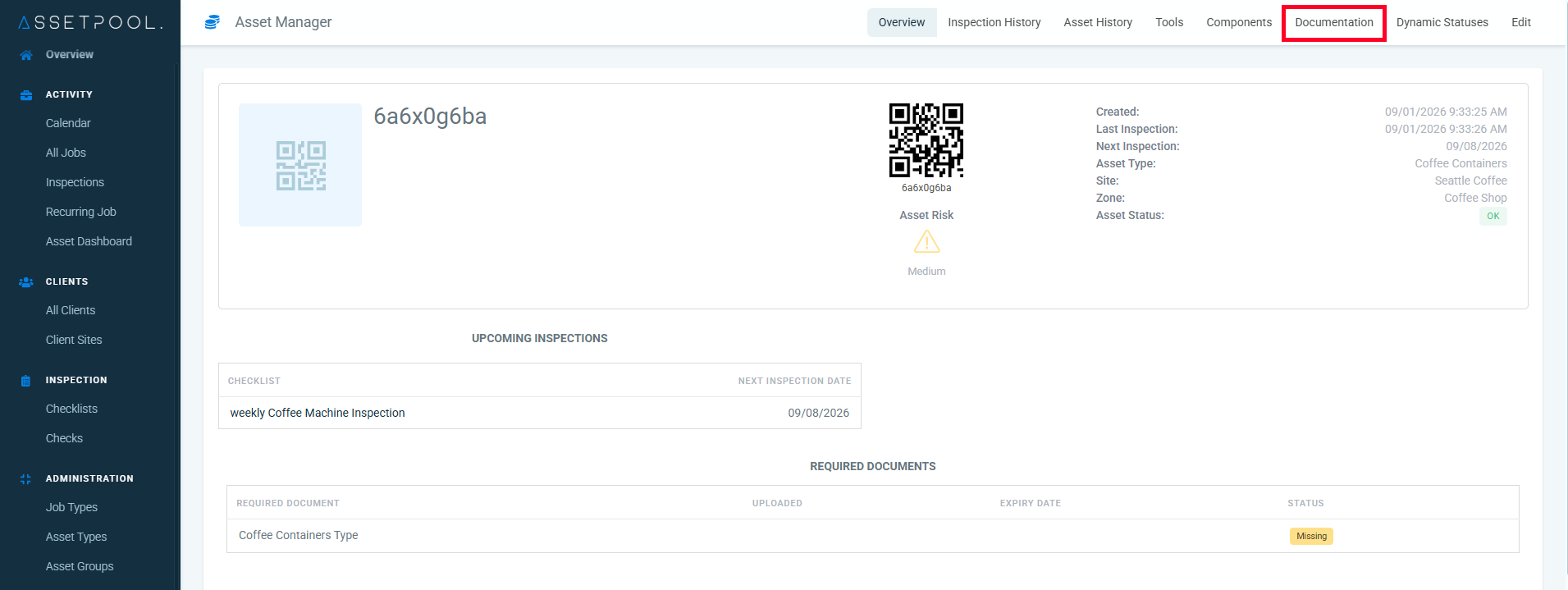
Once this is done Navigate to Asset Manager.
Search for and select the asset you want to add a document to.
Open the Documentation section.
Step 7:
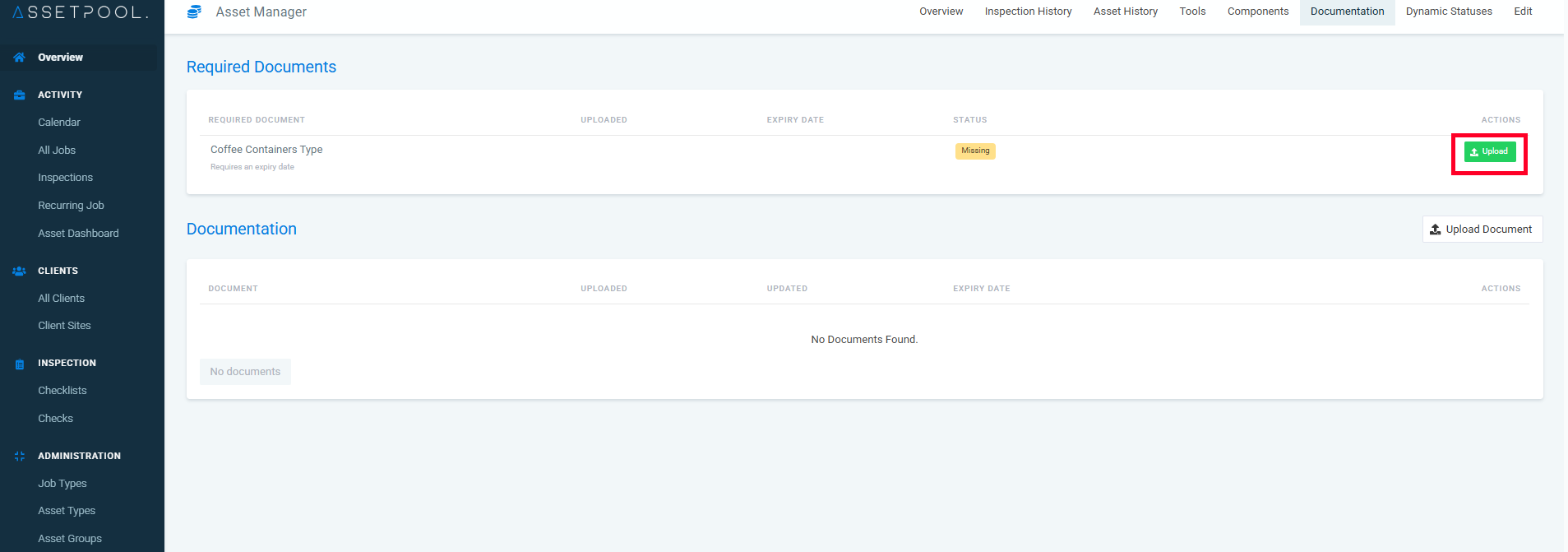
Click on the Upload button.
Step 8:
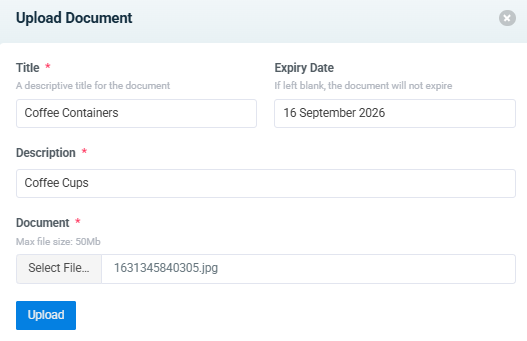
Fill in the required information once done click on the Upload button.
Step 9:
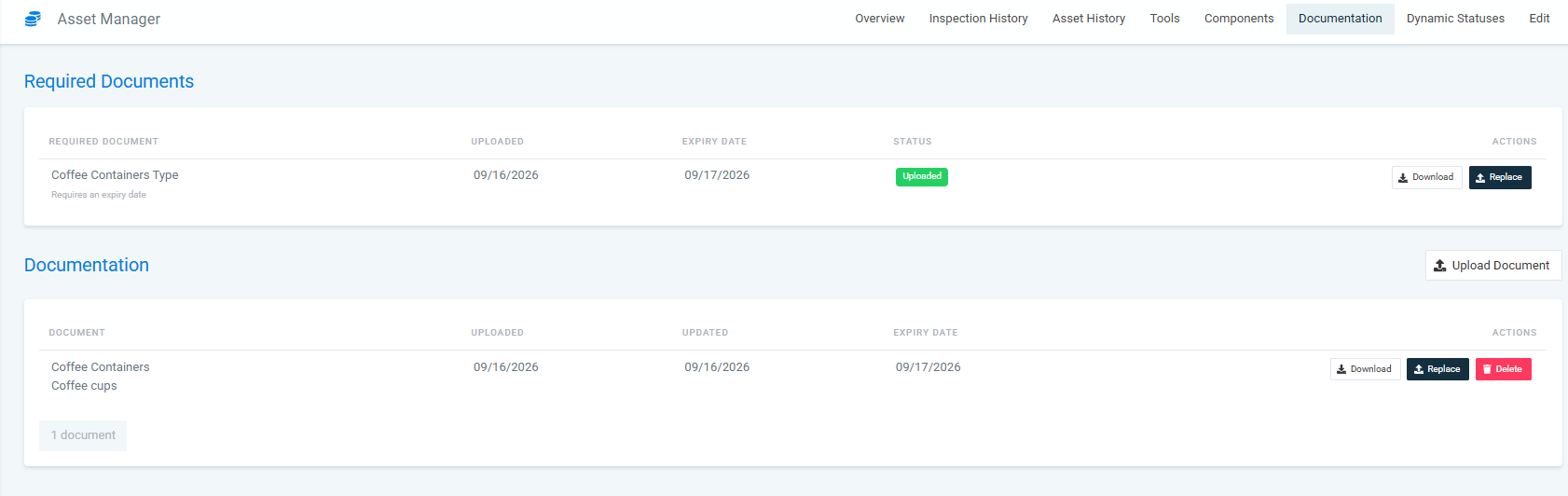
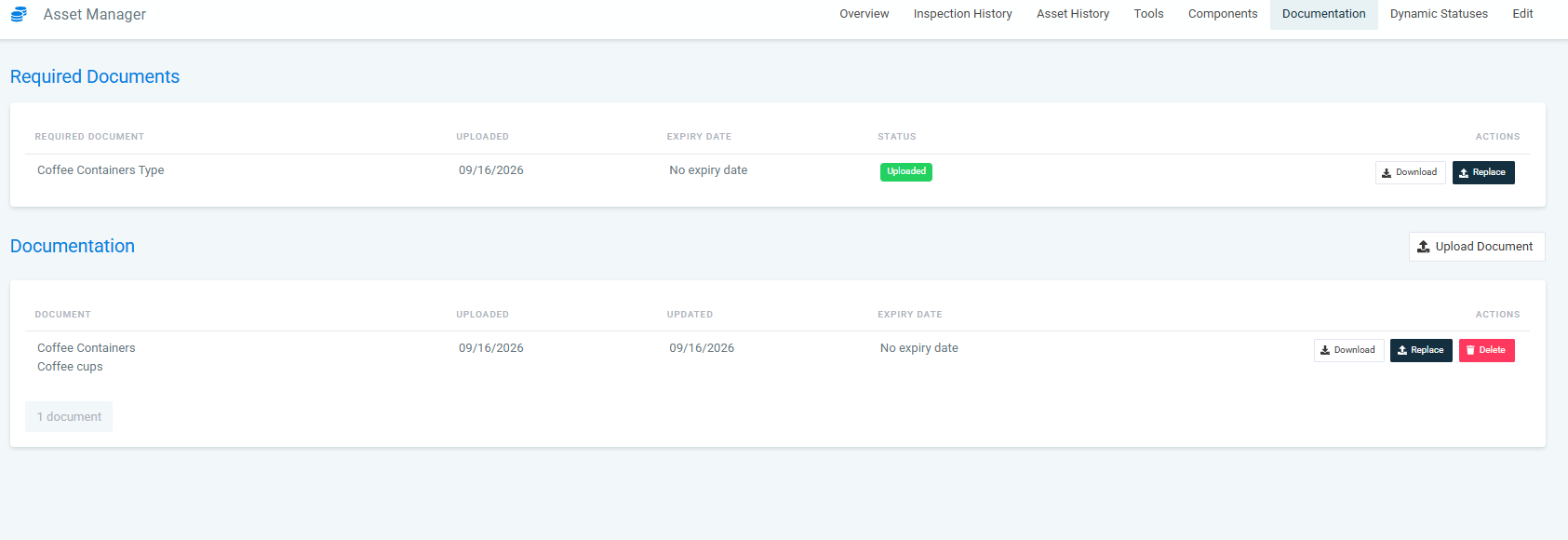
The uploaded documents will appear under Documentation.
The example below shows documents uploaded with and without an expiry date.
Step 10:
Once this is done, navigate to Users and select the user who should receive email notifications for missing documents.
Enable the notification to receive daily reports on missing documents.

Was this article helpful?
That’s Great!
Thank you for your feedback
Sorry! We couldn't be helpful
Thank you for your feedback
Feedback sent
We appreciate your effort and will try to fix the article